Messaging Providers: Choose, Connect and Mix
Arino One connects to messaging providers on your own accounts. You sign with each provider and they bill you directly, with no markup from Arino One.
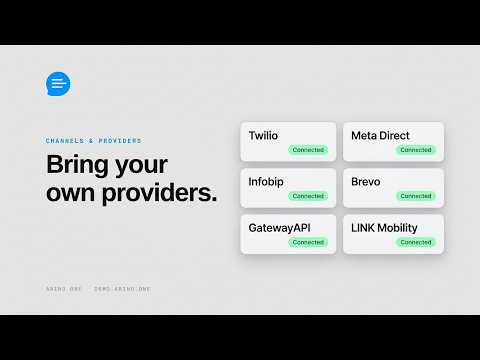
Mix Providers
You can connect several providers at once and choose which one carries each message with routing rules. Each WhatsApp number works through one provider at a time.
What Each Provider Covers
Each sender shows a provider badge so your team knows which provider carries it. See the providers overview for what each one covers.
Test Connection
After adding a provider in Settings → Senders & Numbers, use Test Connection to confirm Arino One can reach it before you send.
Next Steps
Open Settings → Infobip and paste your Base URL and API key from your own Infobip account. Your senders sync automatically. Then run Test Connection.
Open Settings → Senders & Numbers → Add Sender and enter your Phone Number ID, WABA ID, system-user token and App Secret. Copy the webhook URL and verify token into your Meta app, then run Test Connection.
Open Settings → Senders & Numbers → Add Sender and enter your Account SID, Auth Token and Messaging Service SID. Point the Twilio webhook at the URL shown, then run Test Connection.
Frequently asked
Who Do I Pay for Messages?
Each provider, directly, on your own account. There is no markup.
Can One WhatsApp Number Use Two Providers?
No. Each WhatsApp number is on one provider at a time.
How Do I See Which Provider Sent a Message?
Every message shows a provider badge.
How Do I Check a Provider Works?
Run Test Connection on it in Settings → Senders & Numbers.
Apply this to your own deployment
This guide describes decisions we make on live platforms. Tell us your channels, systems and region and we will map it to an architecture outline, a provisioning plan and an indicative commercial model — usually within one business day.