Set Up Your Instance: The Setup Wizard
Your remixed instance sets itself up. The first time you open it with no users, it goes to /setup, a four-step wizard that creates the Super Admin, connects your Infobip account, proves messaging works and pairs the instance with Arino One. After that you add the inbound webhook and public app URL, and you are live.
If you haven't remixed yet: register at client.arino.one, confirm with a WhatsApp code and your email, create a free Lovable account, then remix. See Arino One Platform.
Step 1 — Create the Super Admin
The first user you create is the Super Admin, who owns the instance and can invite everyone else. Use an email address you check: the pairing code in step 4 goes to it.
Step 2 — Connect Infobip
Paste your Infobip base URL, host only (for example xxxxx.api.infobip.com), and your API key. The key is stored encrypted and never leaves your instance.
You can skip this step. The wizard then asks whether you want demo data or a clean workspace, and a Connect your Infobip button stays in the header until you connect.
Step 3 — Send a Test Message
Pick a sender and send a test message to your own phone. Then scan the QR code on screen to reply, and watch the reply arrive in the inbox.
Trial Infobip accounts only deliver to numbers verified in Infobip. Add your number under Channels and Numbers → Test numbers in Infobip first.
Step 4 — Connect to Arino One
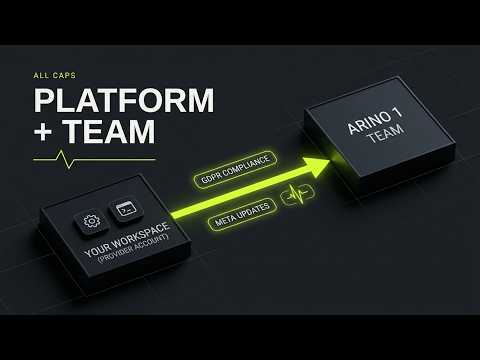
This step is optional but recommended. The owner receives a 6-digit code by email; enter it to pair. Connected instances get updates when Infobip or Meta change, support routed from Account & Services, compliance monitoring, Ping Me activation and WebRTC calling. The connection starts at $99/month.
Before pairing, the instance only sends an anonymous install count and the owner's name and email. After pairing it sends health information and counts, never messages, contacts or keys. See Arino Link and the Command Inbox.
Set the Inbound Webhook
In Infobip, point inbound messages at:
https://<your-app>/api/public/infobip-webhook
Settings → Infobip shows the exact address with its token, ready to copy.
Set the Public App URL
Delivery and read receipts need to know where your instance lives. Set Settings → Business Profile → Public app URL to your published address.
Go Live
Send a message from your live sender and reply to it, then check that the delivery and read receipts appear. Invite your team from Settings, and activate any extra channels (Viber, RCS, voice, Messenger, Instagram, Telegram, LINE, KakaoTalk, Zalo, Apple Messages) one at a time. If messages don't arrive, see webhooks not arriving.
Steps at a glance
- Create the Super AdminOpen your remixed instance. With no users yet, it goes to /setup. Create the Super Admin, the first user, who owns the instance.
- Connect InfobipPaste your Infobip base URL (host only, such as xxxxx.api.infobip.com) and your API key. The key is stored encrypted and never leaves your instance. You can skip this and choose demo data or a clean workspace instead.
- Send a Test MessagePick a sender, send a test message, then scan the QR code to reply from your phone and confirm the reply arrives.
- Connect to Arino One (Recommended)The owner receives a 6-digit code by email. Enter it to pair the instance with Arino One for updates, support, compliance monitoring, Ping Me and WebRTC.
- Set the Inbound WebhookIn Infobip, point inbound messages at https://<your-app>/api/public/infobip-webhook. The full address with its token is shown in Settings → Infobip.
- Set the Public App URLIn Settings → Business Profile, set the Public app URL so delivery and read receipts reach your instance.
- Go LiveSend and receive a message on your live sender, check the delivery and read receipts, then invite your team.
Frequently asked
What Happens the First Time I Open the Remix?
If the instance has no users, it opens the setup wizard at /setup. The wizard has four steps: create the Super Admin, connect Infobip, send a test message, and connect to Arino One.
What Do I Need From Infobip?
Your base URL, host only (for example xxxxx.api.infobip.com), and an API key. The key is stored encrypted and never leaves your instance.
Can I Skip Connecting Infobip?
Yes. You then choose demo data or a clean workspace, and a "Connect your Infobip" button stays in the header until you connect it.
Why Isn't My Test Message Arriving?
Trial Infobip accounts only deliver to numbers verified in Infobip. Add your number under Channels and Numbers → Test numbers in Infobip, then send the test again.
Where Do I Point Infobip's Webhooks?
At https://<your-app>/api/public/infobip-webhook. Settings → Infobip shows the exact address with its token. For delivery and read receipts, also set the Public app URL in Settings → Business Profile.
Do I Have to Connect to Arino One?
It is the recommended default. Pairing brings updates when Infobip or Meta change, support, compliance monitoring, Ping Me activation and WebRTC calling, from $99/month. After pairing, the instance sends health and counts only, never messages, contacts or keys.
Can Arino Set It Up for Me?
Yes. We build it for you is available as a one-time Account Setup of $449. The instance still lives in your own Lovable account and uses your own Infobip account.
Apply this to your own deployment
This guide describes decisions we make on live platforms. Tell us your channels, systems and region and we will map it to an architecture outline, a provisioning plan and an indicative commercial model — usually within one business day.