WhatsApp Catalog: Sell Products Inside the Chat
WhatsApp Catalog turns a conversation into a storefront. Instead of sending a link out to a website, you send the products themselves: a rich card with image, name and price that the customer can tap, ask about, add to a cart, and submit — all inside the chat. Arino One sends these product messages through your own Infobip account and your own WhatsApp sender, against a Meta catalog that you own.
This page covers what the catalog is, how to connect yours, how to send single- and multi-product messages, and what happens when a customer orders.
What This Is
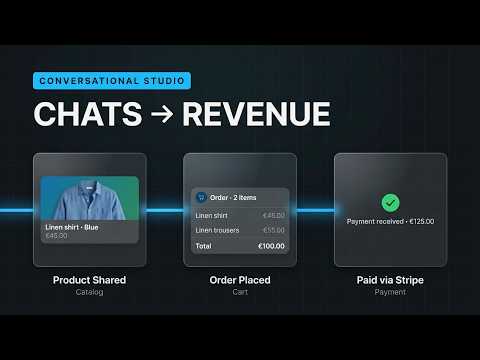
Two message types do the work. A product message shows one item from your catalog with its full detail view. A multi-product message shows a browsable list — up to 30 products grouped into as many as 10 titled sections — so a customer can compare and pick several at once. Both render natively in WhatsApp, so the customer never leaves the conversation and never has to trust a link.
Everything on the card — image, title, description, price, availability — comes from your Meta catalog, not from Arino One. Products are addressed by their retailer ID, the unique identifier you set on each item in Commerce Manager. If a retailer ID in a message doesn't exist in your catalog, that product is quietly skipped and won't be displayed, so keep those IDs stable.
Connect Your Catalog
The catalog is a Meta prerequisite. You create it in Meta Commerce Manager under a business portfolio you control, or reuse an existing one. Alongside it you need the usual WhatsApp foundations: a registered WhatsApp sender on Infobip, a Facebook page for the business, and admin access to the WhatsApp Business Manager account.
To let Arino One send from it, assign Infobip as a catalog partner. In Commerce Manager, open your catalog → Settings → People, add a partner business, and paste the partner Business ID shown in Arino One → Settings. Pick the region that matches your Infobip account — the partner ID differs by region, and the wrong one silently fails to grant access. Your catalog is then connected to your WhatsApp Business Account, and your sender can resolve products from it.
You'll also find the catalog ID in Commerce Manager → Catalogs → Settings. Arino One stores it against your sender so every product message references the right catalog automatically.
Curate Your Products
Add items in Commerce Manager — manually, by data feed, by pixel, or via a store integration. Before you send anything, check the products you plan to use: a clear image, a correct price and currency, an in-stock availability, and a retailer ID you won't renumber later. Product cards are unforgiving; a missing image or a stale price is what the customer sees.
Send Products
From the composer on a conversation, choose Product to send a single item, or Multi-product to build a list. For a multi-product message you group items into sections — one section needs no title, more than one section requires a title of up to 24 characters each — and you can add a header, body and footer around the list. The 30-product and 10-section ceilings are Meta's, and Arino One enforces them before the send so you don't get a rejection.
The same 24-hour rules apply as to any other WhatsApp message: inside the service window a product message goes out free-form, and outside it you need an approved template to reopen the conversation first — a promotional template with a reply button is the usual pattern, with the product message following the customer's tap.
When a Customer Orders
The customer taps through the products, adds what they want to the cart, adjusts quantities, and submits. That submission comes back over the Infobip webhook and lands on the conversation as a pending order: the line items with their retailer IDs, quantities and catalog prices, plus the order total.
Pending is the operative word. WhatsApp has no checkout of its own here — the order is a structured request, not a paid transaction. You confirm availability, adjust quantities or shipping, and then collect payment through your own flow, whether that's a payment link, an invoice, or WhatsApp payments where it's available in your market. The order stays attached to the contact, so it shows up in their CDP history and can trigger an automation for confirmation and follow-up.
Runs on Your Own Infobip and WABA
Catalog messaging is never sent centrally by Arino One. It runs on your Infobip account, your WhatsApp Business Account, your sender and your Meta catalog. Arino One is the interface and the orchestration layer: it stores the connection, builds valid product and multi-product payloads, and brings the resulting carts back into your inbox and CDP. Your commerce data, your pricing and your customer relationships stay entirely yours.
Steps at a glance
- Connect Your Meta CatalogIn Meta Commerce Manager, open your catalog's settings and assign Infobip as a catalog partner using the partner Business ID shown in Arino One → Settings, then pick the matching region.
- Curate Your ProductsAdd or import items in Commerce Manager and make sure every product you plan to send has a stable retailer ID, price, image and availability.
- Send a Product MessageFrom the composer, pick a single product or build a multi-product message — up to 30 products across a maximum of 10 sections.
- Let the Customer Build a CartThe customer browses the products natively in WhatsApp, adds what they want to their cart, and submits it without leaving the chat.
- Handle the OrderThe submitted cart arrives on the conversation as a pending order with line items, quantities and totals, ready for you to confirm, price or collect payment.
Frequently asked
Do I Need a Meta Catalog?
Yes. Product messages always reference items in a Meta catalog that you own, created and managed in Meta Commerce Manager under your own business portfolio. Arino One doesn't host products for you — it sends from the catalog attached to your WhatsApp Business Account.
Where Do I Connect It?
In Commerce Manager, open your catalog → Settings → People and assign Infobip as a catalog partner using the partner Business ID shown in Arino One → Settings, choosing the region that matches your account. Your catalog is then linked to your WhatsApp sender so product messages can resolve retailer IDs.
How Many Products Can I Put in One Message?
A product message carries a single item. A multi-product message carries up to 30 products, organised into a maximum of 10 sections — each section needs a title once you use more than one. Any retailer ID that doesn't exist in your catalog is simply skipped and won't be displayed.
What Happens at Checkout?
There is no checkout inside WhatsApp. The customer submits their cart, and that cart lands on the conversation as a pending order — line items, quantities and the catalog's prices. You confirm it, adjust it, and collect payment through your own flow.
Does This Use My Infobip Account?
Yes. Catalog messages run entirely on your own Infobip account and your own WABA and catalog — Arino One never sends them centrally, so the traffic, pricing and commerce data all stay under your business.
Apply this to your own deployment
This guide describes decisions we make on live platforms. Tell us your channels, systems and region and we will map it to an architecture outline, a provisioning plan and an indicative commercial model — usually within one business day.